
Knowledge Base - Migrating from EWS to Microsoft Graph
Why Migrate?
Microsoft Graph is Microsoft's unified API gateway for accessing data across Microsoft 365 services — mail, calendar, contacts, files, Teams, and more — through a single REST endpoint (https://graph.microsoft.com).
Exchange Web Services (EWS) is the legacy SOAP-based API that communicates directly with Exchange Server. Microsoft has officially announced that EWS will no longer receive feature updates and will eventually be deprecated for Exchange Online. New OAuth application registrations for EWS-only access are already being restricted.
Key Differences
| EWS | Microsoft Graph | |
|---|---|---|
| Protocol | SOAP/XML | REST/JSON |
| Endpoint | Per-server (/EWS/Exchange.asmx) |
Unified (https://graph.microsoft.com) |
| Authentication | Basic Auth (removed), OAuth | OAuth 2.0 only |
| Scope | Exchange mailbox only | All Microsoft 365 services |
| Notifications | Streaming/pull subscriptions | Webhooks, change notifications |
| Status | Maintenance mode, no new features | Actively developed |
From AESync's perspective the migration is straightforward — the sync engine handles both APIs transparently. You only need to switch the connection type and grant consent as described below.
Step 1: Revoke User Consent
- Sign in to the Azure Portal.
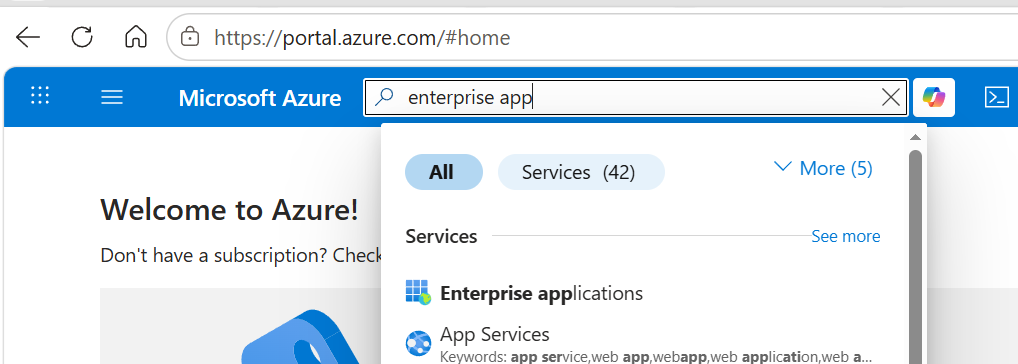
- Navigate to Azure Active Directory → Manage → Enterprise applications.
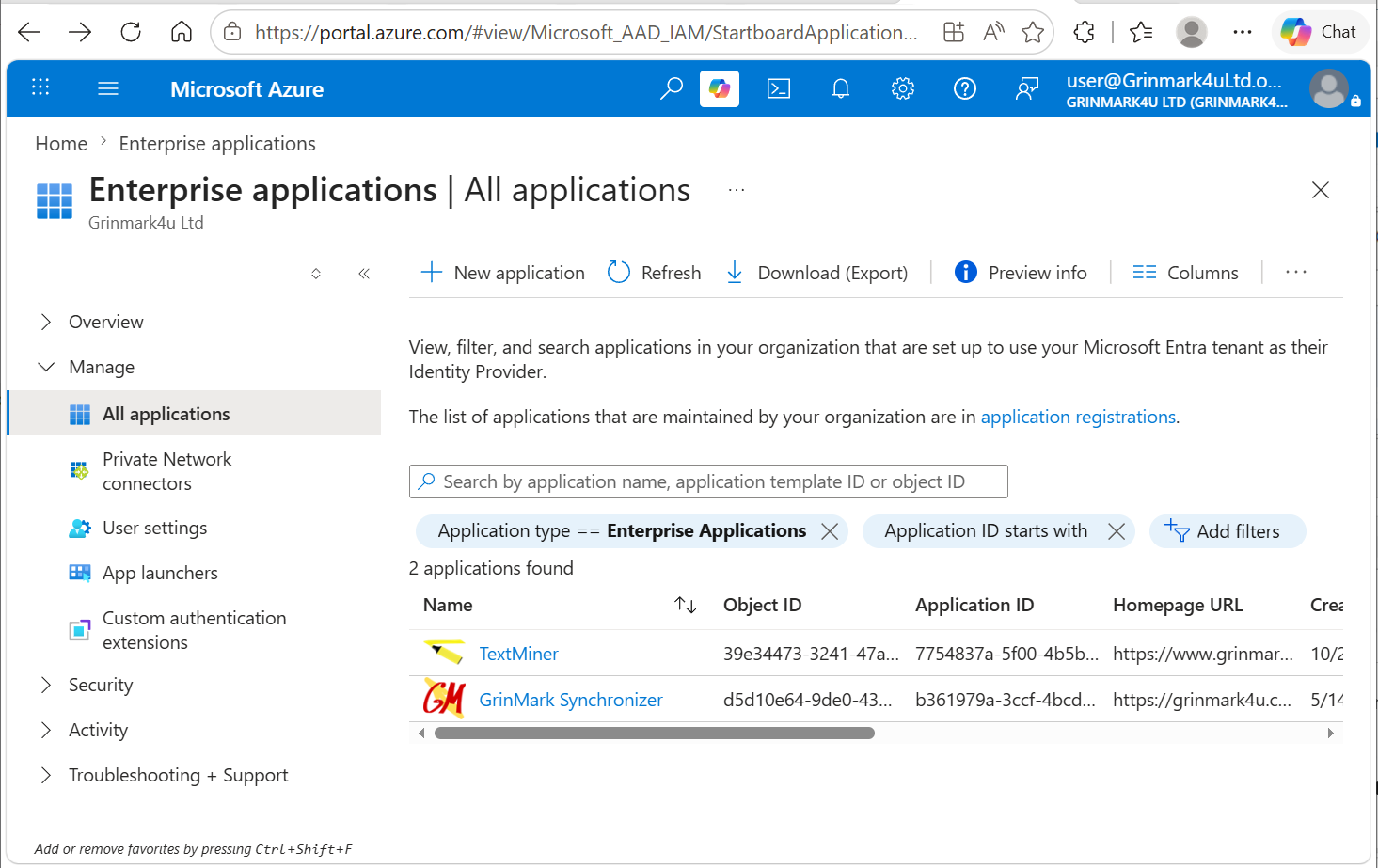
- Find GrinMark Synchronizer in the list and select it.
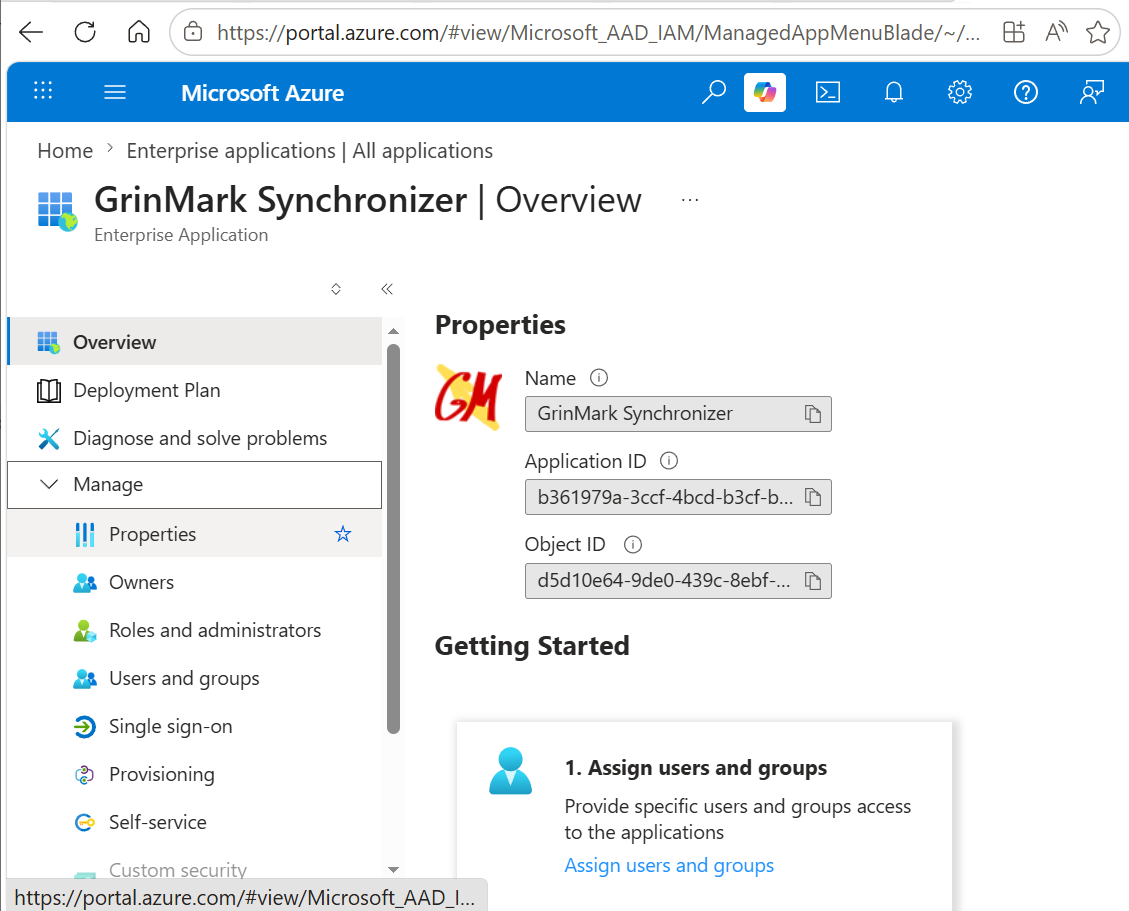
- On the left sidebar, choose Manage → Properties.
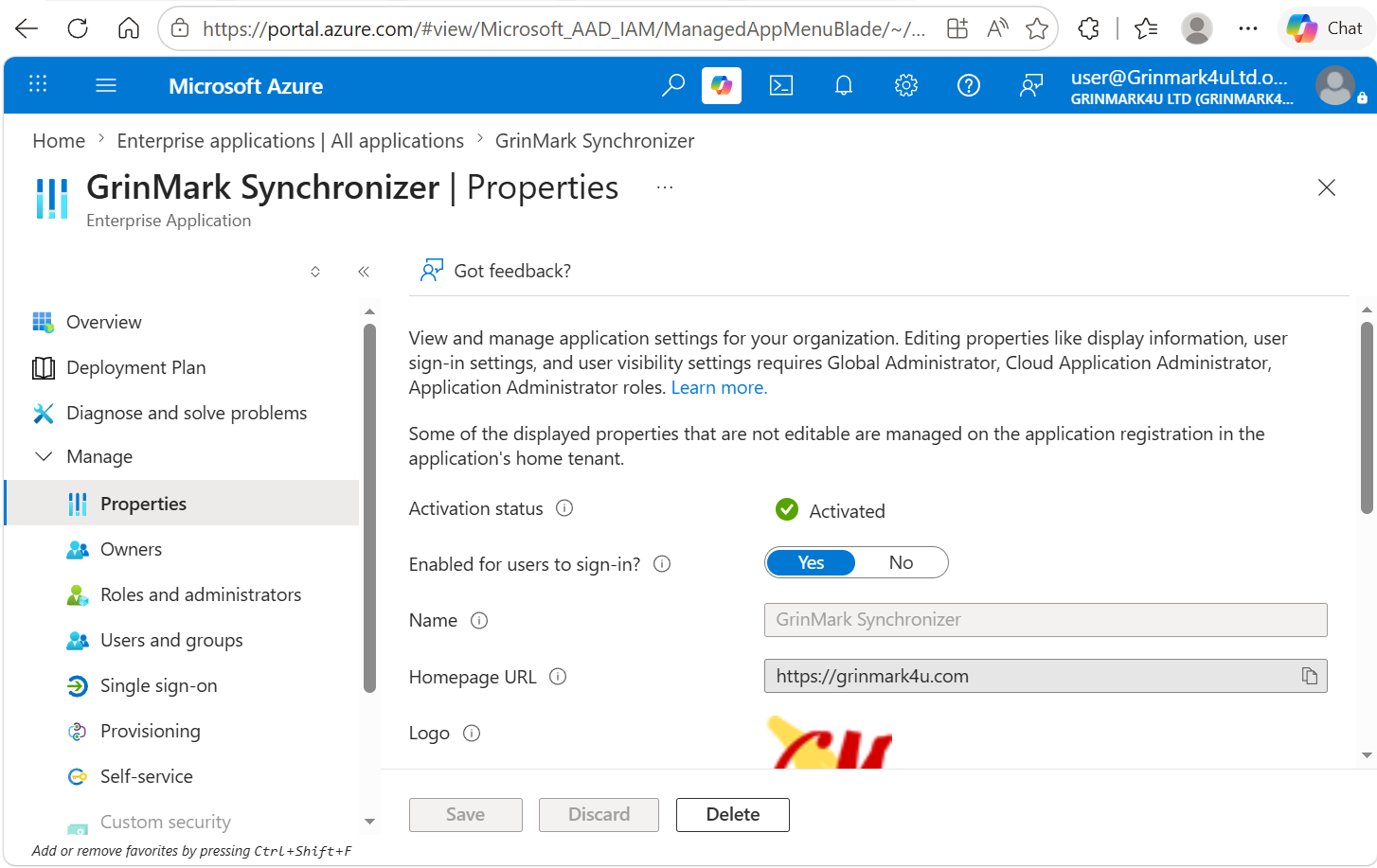
- Click the Delete button.
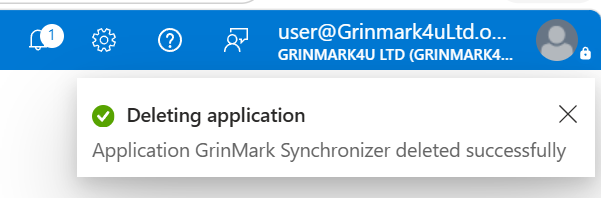
- You should see an app-deleted confirmation:
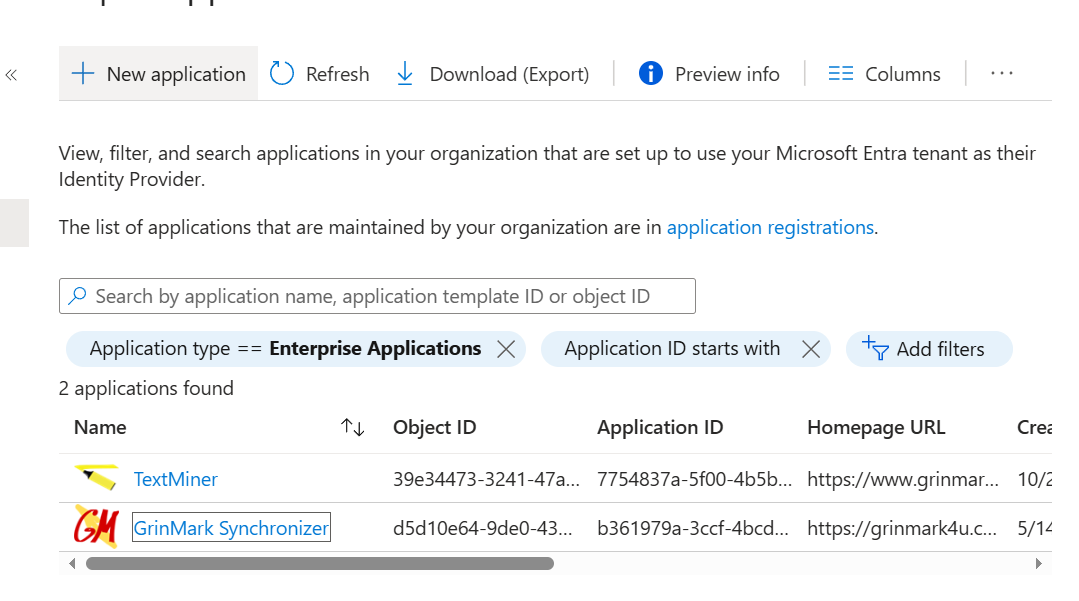
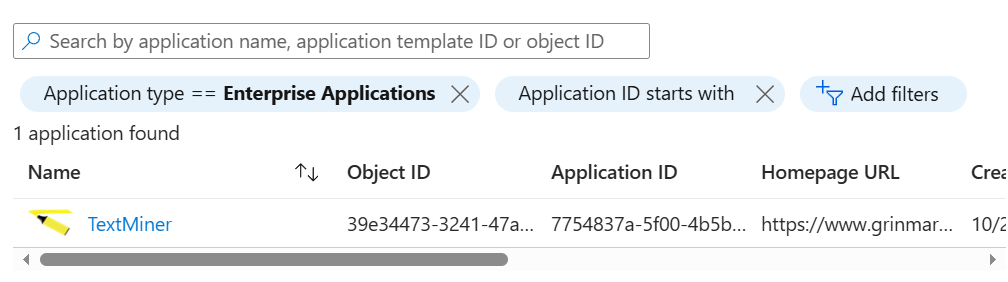
- Refresh the app list — GrinMark Synchronizer should no longer appear:
Step 2: Restart Profile Manager
Close and reopen the AESync Profile Manager so it picks up the consent removal.
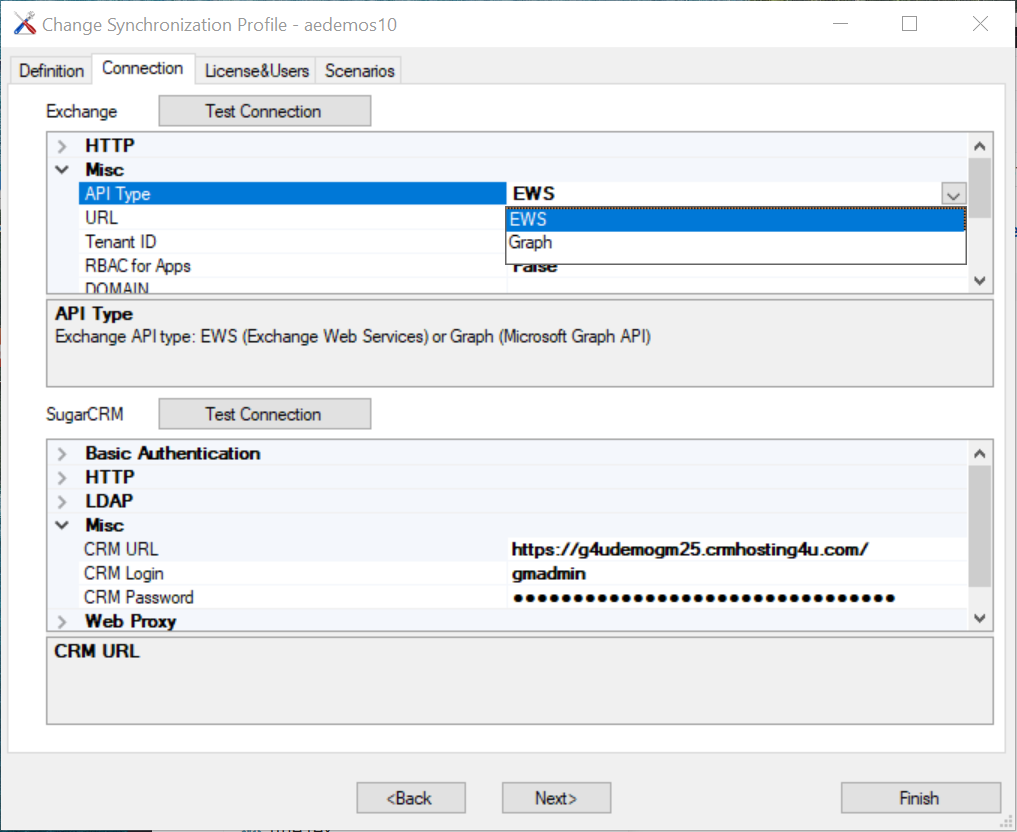
Step 3: Switch Api Type to Graph
- Select your profile and change the Api Type to Graph in the connection settings:
- Click Test Connection. You will see a consent-required message:
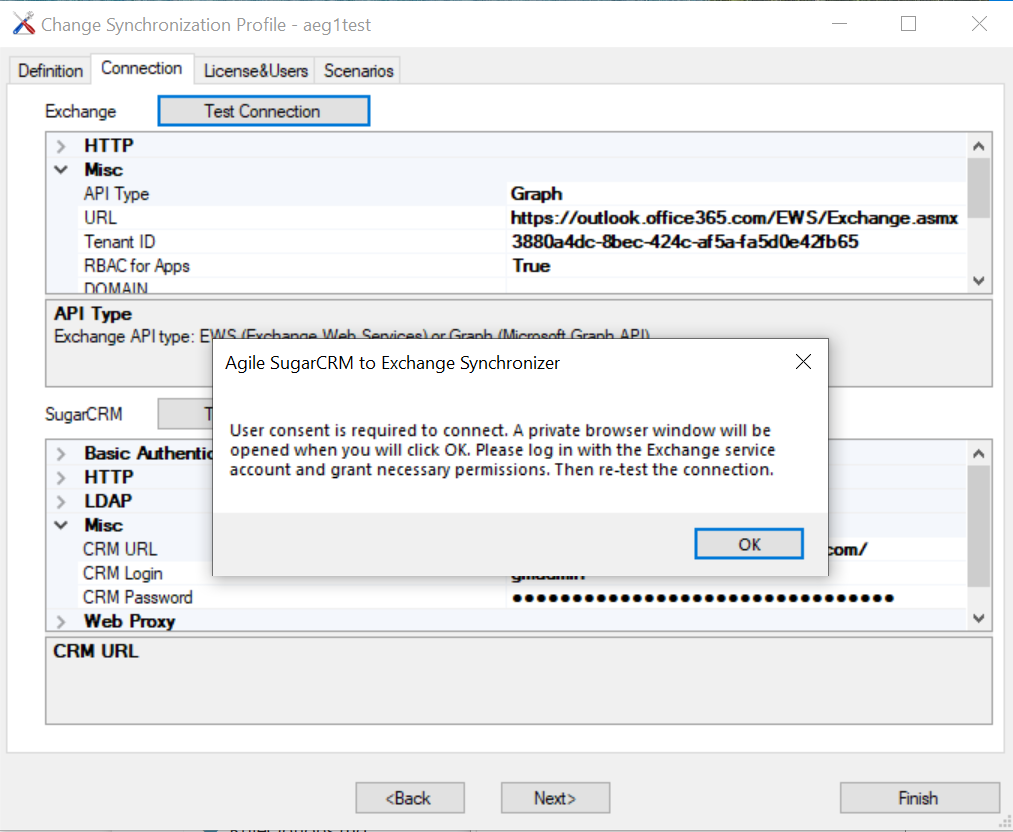
User consent is required to connect. A private browser window will be opened when you click OK. Please log in with the Exchange service account and grant the necessary permissions. Then re-test the connection.
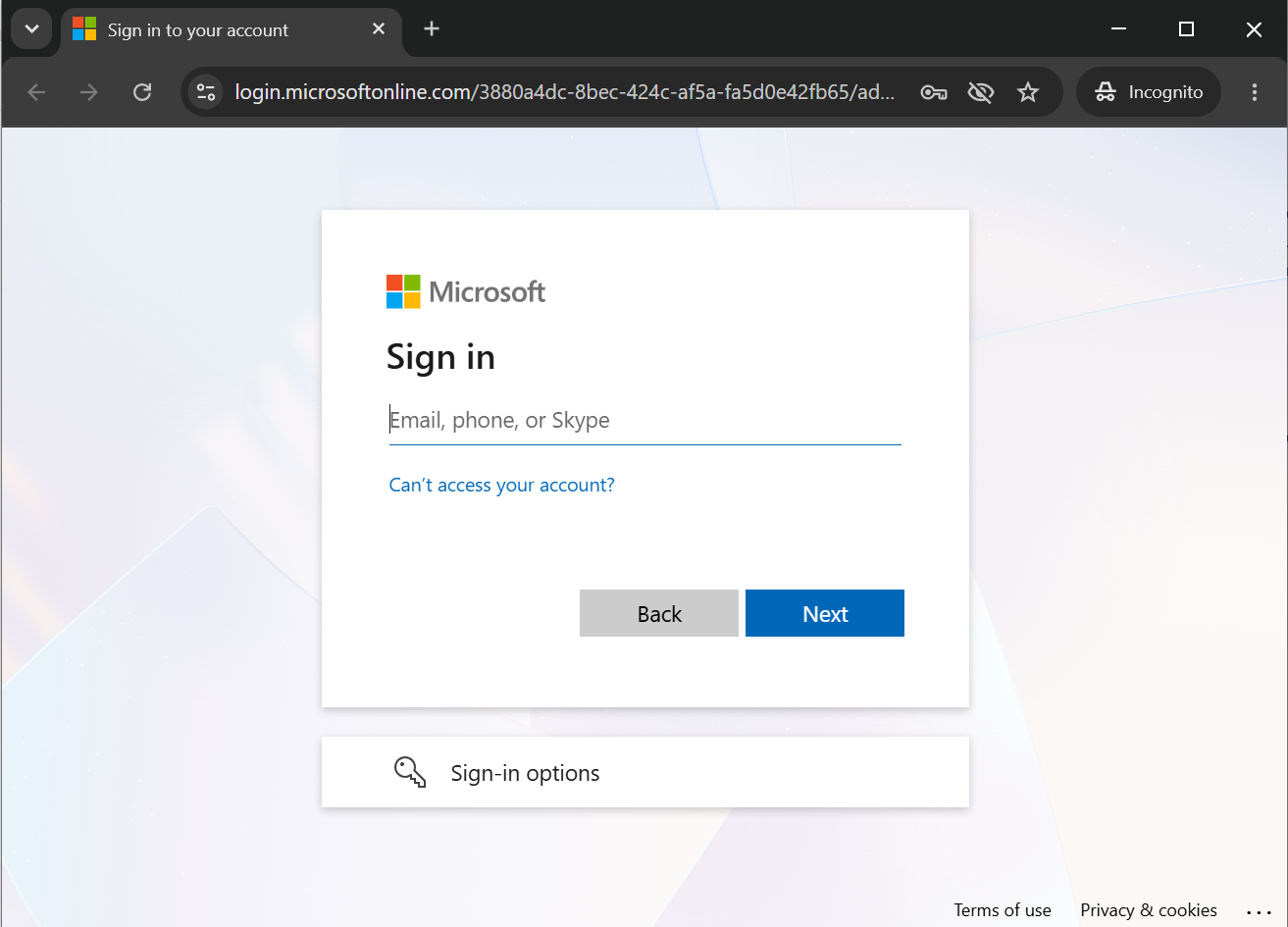
- Click OK. A browser window opens — sign in with your Microsoft account:
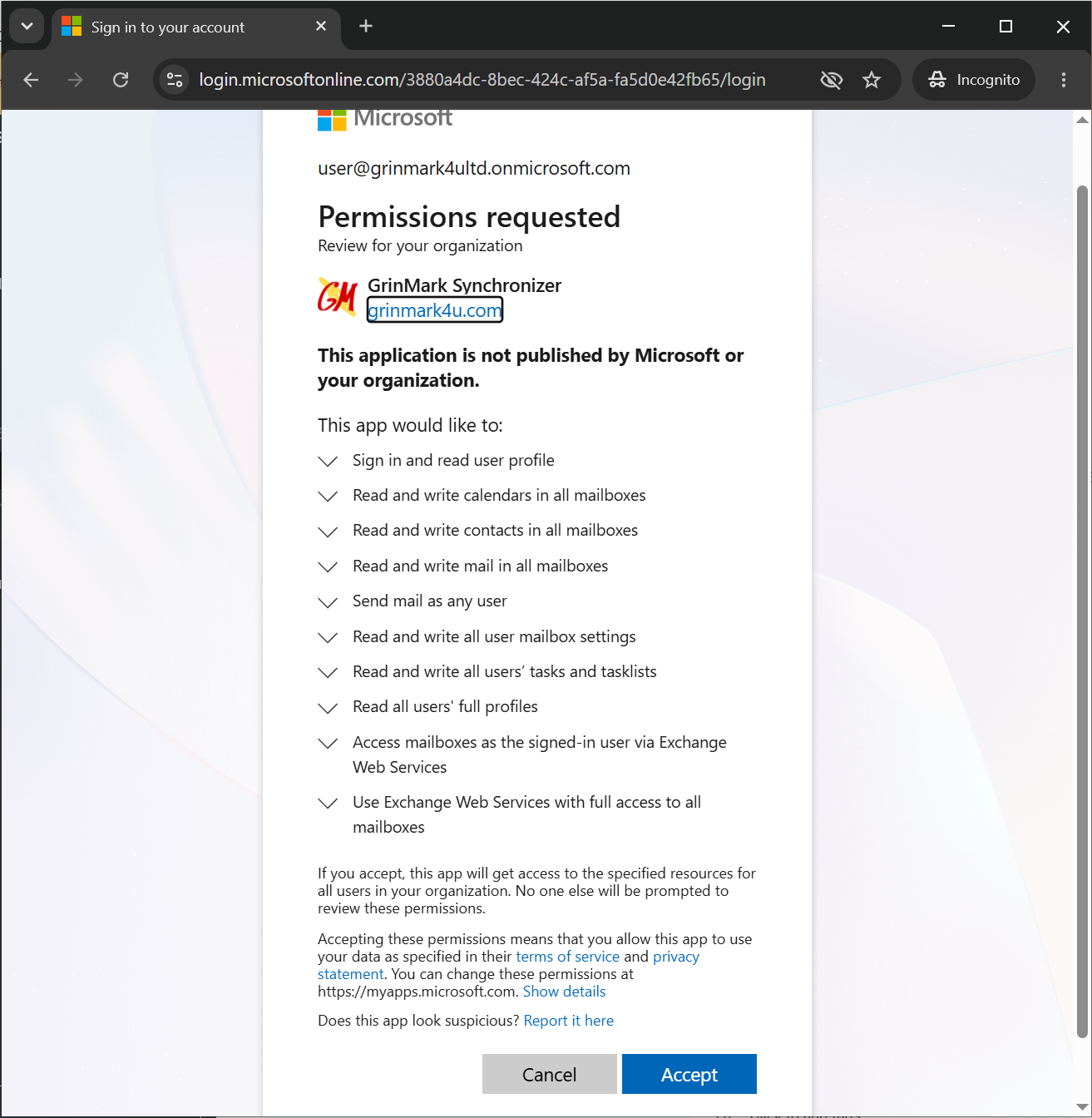
- Review and accept the requested permissions:
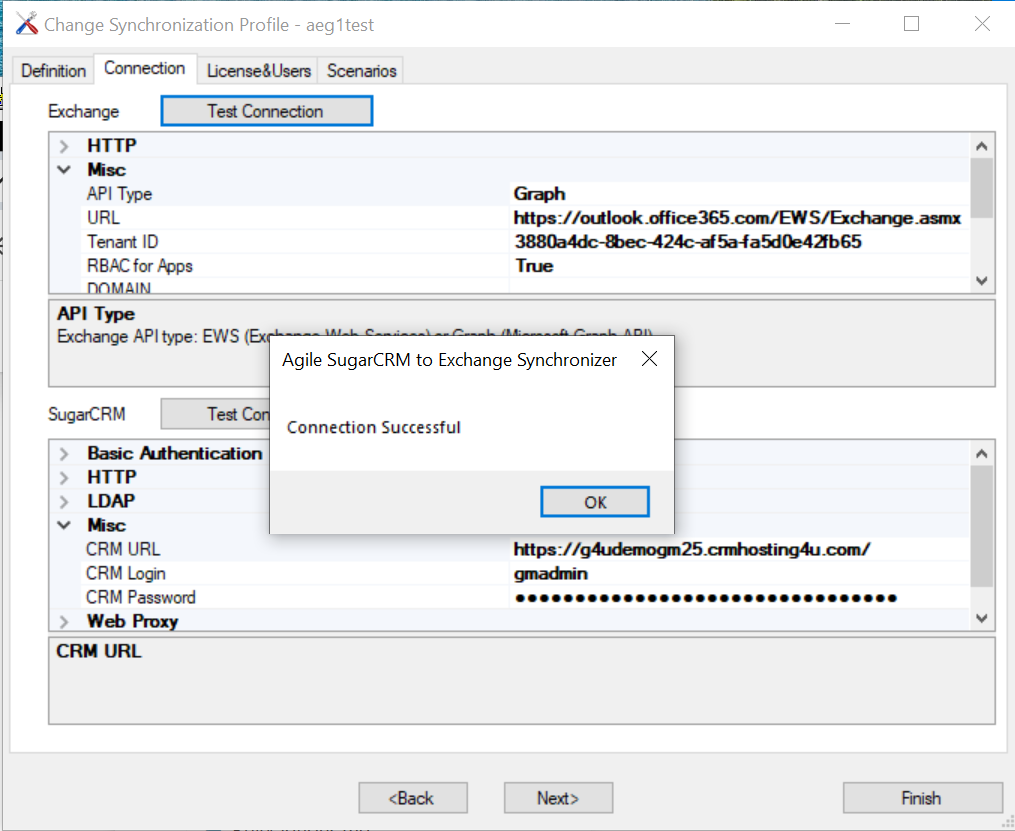
- Close the browser and click Test Connection again. It should now succeed:
Migration Best Practices
- Start with a sandbox profile. Create or designate a test sync profile and migrate it to Graph first. Let it run for several days and verify that contacts, appointments, and other items synchronize correctly in your environment.
- Migrate one profile at a time. Once the sandbox profile is confirmed working, enable Graph for production profiles one by one. Allow each profile to run for a reasonable period (at least a few sync cycles) before moving on to the next.
- Monitor sync logs. After each migration, check the sync logs for warnings or errors before proceeding with additional profiles.
This gradual approach minimizes risk and makes it easy to isolate issues if they arise in a specific profile or configuration.