
Knowledge Base - Configuring RBAC for Applications in Exchange Online
Overview
RBAC for Applications (Role-Based Access Control for Applications) is Microsoft’s recommended method for controlling which mailboxes a third-party application can access in Exchange Online. This guide explains how to configure GrinMark Synchronizer with granular mailbox access control.
Why Use RBAC for Applications?
By default, when you grant GrinMark Synchronizer access to your Microsoft 365 tenant, the application receives permission to access all mailboxes in your organization. While this is required for the sync service to function, many organizations need to restrict which mailboxes can be synchronized.
RBAC for Applications allows you to:
- Limit access to specific mailboxes — Only mailboxes you explicitly allow can be accessed
- Scope by department, region, or custom attributes — Use filters to define which mailboxes are in scope
- Use Administrative Units — Leverage existing Microsoft Entra organizational structures
- Maintain compliance — Meet security and regulatory requirements for data access
Important: RBAC for Applications replaces the legacy Application Access Policies, which Microsoft has marked for deprecation. New deployments should use RBAC for Applications.
Understanding the Consent Screen
When you first configure GrinMark Synchronizer, you will see a Microsoft consent screen requesting broad permissions.
What you will see:
- “Read and write calendars in all mailboxes”
- “Read and write contacts in all mailboxes”
- “Read and write mail in all mailboxes”
- “Send mail as any user”
- “Read and write all user mailbox settings”
Why Does It Say “All Mailboxes”?
This is expected and by design. Microsoft Graph application permissions are defined as organization-wide — there is no way to request “limited” permissions at the consent stage.
The actual restriction of which mailboxes the application can access happens after consent, through RBAC for Applications configuration in Exchange Online.
Think of it this way:
- Consent screen = Maximum possible permissions the app could have
- RBAC for Applications = Actual permissions the app does have (scoped by you)
Note: After configuring RBAC for Applications, you should remove the broad permissions from Microsoft Entra ID (see Step 6). The RBAC assignments then become the sole source of authorization.
Prerequisites
Before configuring RBAC for Applications, ensure you have:
- Exchange Online (Microsoft 365) — RBAC for Applications is not available for on-premises Exchange Server
- Exchange Administrator or Organization Management role in Exchange Online
- Exchange Online PowerShell module installed
- GrinMark Synchronizer already configured and working (initial consent completed)
-
The GrinMark Synchronizer App ID:
b361979a-3ccf-4bcd-b3cf-b5acb60e8e0f
Configuration Steps
Step 1: Connect to Exchange Online PowerShell
# Install the modules if not already installed
Install-Module -Name ExchangeOnlineManagement -Force -AllowClobber
Install-Module -Name Microsoft.Graph -Force -AllowClobber

# Connect to Exchange Online
Connect-ExchangeOnline -UserPrincipalName admin@yourdomain.com
Step 2: Find the Service Principal Object ID
You need the Object ID of the GrinMark Synchronizer service principal in your tenant. This is different from the App ID.
Option A: Using Microsoft Entra Admin Center
- Go to Microsoft Entra Admin Center
- Navigate to Applications → Enterprise applications
- Search for “GrinMark Synchronizer”
- Copy the Object ID (not the Application ID)
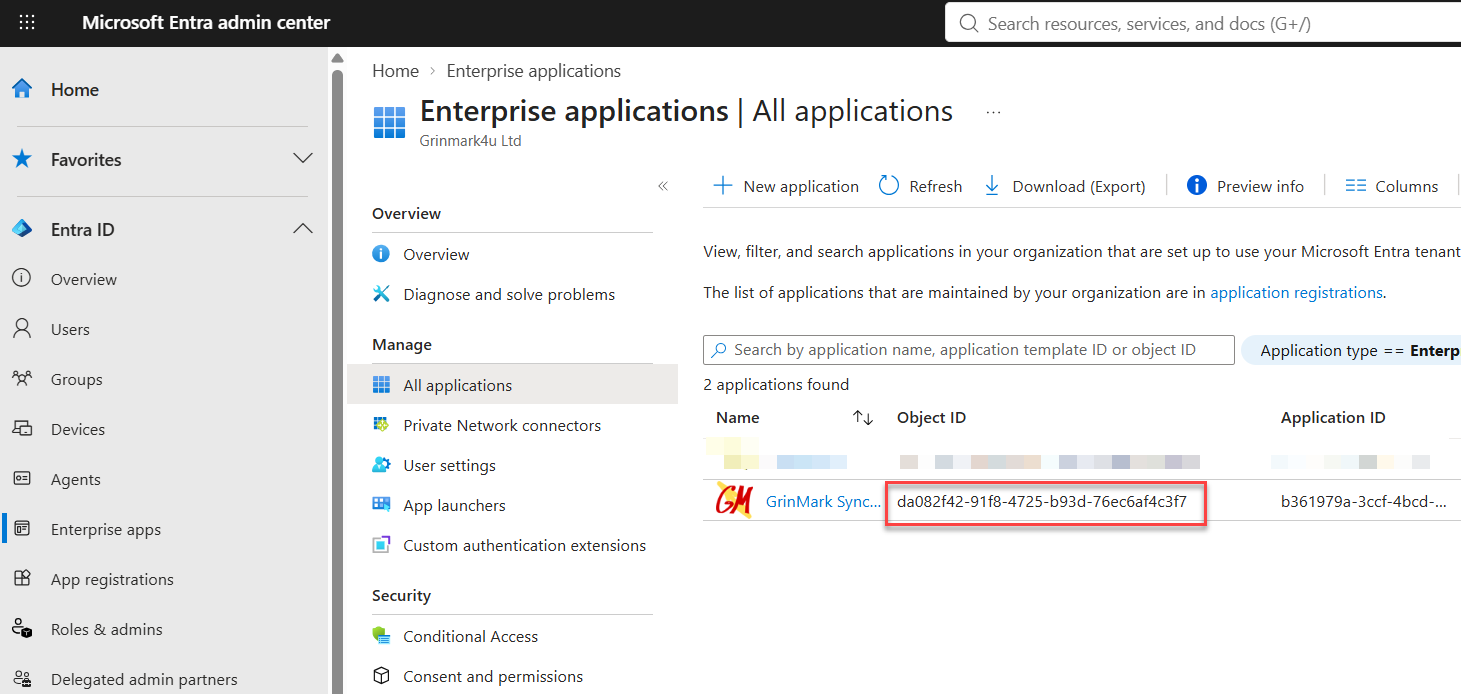
Option B: Using PowerShell
# Connect to Microsoft Graph
Connect-MgGraph -Scopes "Application.Read.All"

# Find the service principal
Get-MgServicePrincipal -Filter "appId eq 'b361979a-3ccf-4bcd-b3cf-b5acb60e8e0f'" | Select-Object DisplayName, Id, AppId
Note the Id value — this is your Service Principal Object ID.
Step 3: Create the Service Principal in Exchange Online
Register the GrinMark Synchronizer service principal in Exchange Online:
New-ServicePrincipal -AppId "b361979a-3ccf-4bcd-b3cf-b5acb60e8e0f" `
    -ObjectId "<YourServicePrincipalObjectId>" `
    -DisplayName "GrinMark Synchronizer"
Example:
New-ServicePrincipal -AppId "b361979a-3ccf-4bcd-b3cf-b5acb60e8e0f" `
    -ObjectId "da082f42-91f8-4725-b93d-76ec6af4c3f7" `
    -DisplayName "GrinMark Synchronizer"
Step 4: Create a Management Scope
A Management Scope defines which mailboxes the application can access. Choose one of the following approaches:
Option A: Scope by Mail-Enabled Security Group
Create a mail-enabled security group containing the users whose mailboxes should be synchronized, then create a scope based on group membership.
# First, get the distinguished name of your group
$group = Get-Group -Identity "GrinMark Sync Users"
$groupDN = $group.DistinguishedName

# Create the management scope
New-ManagementScope -Name "GrinMark Allowed Mailboxes" `
    -RecipientRestrictionFilter "MemberOfGroup -eq '$groupDN'"
Option B: Scope by Custom Attribute
Use a custom attribute on mailboxes to control access:
# Create scope for mailboxes with CustomAttribute1 = "SyncEnabled"
New-ManagementScope -Name "GrinMark Allowed Mailboxes" `
    -RecipientRestrictionFilter "CustomAttribute1 -eq 'SyncEnabled'"
To mark a mailbox for sync:
Set-Mailbox -Identity user@yourdomain.com -CustomAttribute1 "SyncEnabled"Option C: Scope by Department
# Create scope for Sales department only
New-ManagementScope -Name "GrinMark Sales Mailboxes" `
    -RecipientRestrictionFilter "Department -eq 'Sales'"
Option D: Scope by Multiple Criteria
# Create scope for Sales and Marketing in the US office
New-ManagementScope -Name "GrinMark US Sales Marketing" `
    -RecipientRestrictionFilter "(Department -eq 'Sales' -or Department -eq 'Marketing') -and Office -eq 'US'"
Option E: Use Administrative Units
If you have Administrative Units configured in Microsoft Entra ID:
# Get the Administrative Unit ID from Entra
# Then use it directly in the role assignment (Step 5)
Step 5: Assign Application Roles
Now assign the required permissions to the GrinMark Synchronizer service principal, scoped to your management scope.
Required Roles for Full Sync Functionality
For complete GrinMark Synchronizer functionality, assign the following roles:
# Calendar synchronization
New-ManagementRoleAssignment -App "GrinMark Synchronizer" `
    -Role "Application Calendars.ReadWrite" `
    -CustomResourceScope "GrinMark Allowed Mailboxes"

# Contact synchronization
New-ManagementRoleAssignment -App "GrinMark Synchronizer" `
    -Role "Application Contacts.ReadWrite" `
    -CustomResourceScope "GrinMark Allowed Mailboxes"

# Email access (for archiving)
New-ManagementRoleAssignment -App "GrinMark Synchronizer" `
    -Role "Application Mail.ReadWrite" `
    -CustomResourceScope "GrinMark Allowed Mailboxes"

# Send mail (for email sync scenarios)
New-ManagementRoleAssignment -App "GrinMark Synchronizer" `
    -Role "Application Mail.Send" `
    -CustomResourceScope "GrinMark Allowed Mailboxes"

# Mailbox settings (for timezone, etc.)
New-ManagementRoleAssignment -App "GrinMark Synchronizer" `
    -Role "Application MailboxSettings.Read" `
    -CustomResourceScope "GrinMark Allowed Mailboxes"
Using Administrative Units Instead
If using Administrative Units instead of Management Scopes:
New-ManagementRoleAssignment -App "GrinMark Synchronizer" `
    -Role "Application Calendars.ReadWrite" `
    -RecipientAdministrativeUnitScope "<AdminUnitObjectId>"
Minimal Permissions (Contacts Only)
If you only need contact synchronization:
New-ManagementRoleAssignment -App "GrinMark Synchronizer" `
    -Role "Application Contacts.ReadWrite" `
    -CustomResourceScope "GrinMark Allowed Mailboxes"
Step 6: Remove Broad Permissions from Microsoft Entra ID
This step is critical. RBAC for Applications permissions are additive to Microsoft Entra permissions. If you leave the broad permissions in Entra, the application will still have access to all mailboxes.
- Go to Microsoft Entra Admin Center
- Navigate to Applications → Enterprise applications
- Find and select GrinMark Synchronizer
- Go to Permissions
- Click Review permissions or directly remove the admin-consented permissions:
- Mail.ReadWrite
- Calendars.ReadWrite
- Contacts.ReadWrite
- Mail.Send
- MailboxSettings.Read
Warning: After removing Entra permissions, only the RBAC-scoped permissions will apply. Ensure your Management Scope includes all mailboxes that need to be synchronized.
Step 7: Verify Configuration
Test that the configuration is correct:
# Test access for a specific mailbox
Test-ServicePrincipalAuthorization -Identity "GrinMark Synchronizer" `
    -Resource user@yourdomain.com

# Expected output shows which permissions apply and whether the mailbox is in scope
Sample Output:
RoleName                      GrantedPermissions    AllowedResourceScope           InScope
--------                      ------------------    --------------------           -------
Application Mail.ReadWrite    Mail.ReadWrite        GrinMark Allowed Mailboxes     True
Application Calendars.ReadWrite Calendars.ReadWrite GrinMark Allowed Mailboxes     True
Application Contacts.ReadWrite Contacts.ReadWrite   GrinMark Allowed Mailboxes     True
Test with a mailbox outside your scope to verify it’s blocked:
Test-ServicePrincipalAuthorization -Identity "GrinMark Synchronizer" `
    -Resource ceo@yourdomain.com
If the CEO is not in your scope, InScope should show False.
Available Application Roles Reference
| Role Name | Permission | Description |
|---|---|---|
Application Mail.Read |
Mail.Read | Read email only |
Application Mail.ReadWrite |
Mail.ReadWrite | Read, create, update, delete email |
Application Mail.Send |
Mail.Send | Send email as users |
Application Calendars.Read |
Calendars.Read | Read calendar events only |
Application Calendars.ReadWrite |
Calendars.ReadWrite | Full calendar access |
Application Contacts.Read |
Contacts.Read | Read contacts only |
Application Contacts.ReadWrite |
Contacts.ReadWrite | Full contacts access |
Application MailboxSettings.Read |
MailboxSettings.Read | Read mailbox settings |
Application MailboxSettings.ReadWrite |
MailboxSettings.ReadWrite | Read/write mailbox settings |
Application EWS.AccessAsApp |
EWS.AccessAsApp | Full EWS access (for EWS API mode) |
Application Exchange Full Access |
All of the above | Complete Exchange access |
Managing Mailbox Access
Adding a User to the Sync Scope
If using group-based scope:
Add the user to the mail-enabled security group “GrinMark Sync Users” in Microsoft Entra ID or Exchange Admin Center.
If using custom attribute:
Set-Mailbox -Identity newuser@yourdomain.com -CustomAttribute1 "SyncEnabled"Removing a User from the Sync Scope
If using group-based scope:
Remove the user from the security group.
If using custom attribute:
Set-Mailbox -Identity formeruser@yourdomain.com -CustomAttribute1 $nullViewing Current Scope Members
# List all mailboxes in the scope
Get-Recipient -RecipientPreviewFilter (Get-ManagementScope "GrinMark Allowed Mailboxes").RecipientFilter
Troubleshooting
Sync Fails for a Specific User
Verify the user is in scope:
Test-ServicePrincipalAuthorization -Identity "GrinMark Synchronizer" -Resource user@yourdomain.comCheck if Entra permissions were removed: If
InScopeisTruebut sync still fails, ensure broad Entra permissions were removed.Cache delay: RBAC changes can take 30 minutes to 2 hours to propagate. Wait and retry.
“Access Denied” Errors in GrinMark Logs
This typically means the mailbox is outside the configured scope. Either: - Add the mailbox to your scope (group membership or custom attribute) - Or confirm this is expected behavior (the mailbox should not be synced)
Scope Not Working as Expected
Verify your filter syntax:
# Preview which mailboxes match your filter
Get-Recipient -RecipientPreviewFilter "CustomAttribute1 -eq 'SyncEnabled'"
Service Principal Not Found
If New-ServicePrincipal fails, ensure: 1. The GrinMark app has been consented in your tenant (the service principal exists in Entra) 2. You’re using the correct Object ID (not App ID)
Migration from Application Access Policies
If you previously used Application Access Policies (legacy), follow these steps to migrate:
- Note your current policy scope (the security group used)
Create a Management Scope using the same group:
$group = Get-Group -Identity "YourExistingPolicyGroup" New-ManagementScope -Name "GrinMark Allowed Mailboxes" ` -RecipientRestrictionFilter "MemberOfGroup -eq '$($group.DistinguishedName)'"- Create the Service Principal (Step 3 above)
- Assign roles with the new scope (Step 5 above)
- Remove Entra permissions (Step 6 above)
Remove the old Application Access Policy:
Get-ApplicationAccessPolicy | Where-Object {$_.AppId -eq "b361979a-3ccf-4bcd-b3cf-b5acb60e8e0f"} | Remove-ApplicationAccessPolicy
Summary
| Component | Purpose |
|---|---|
| Service Principal | Represents GrinMark Synchronizer in Exchange Online |
| Management Scope | Defines which mailboxes are accessible |
| Role Assignment | Grants specific permissions within the scope |
| Entra Permission Removal | Ensures only RBAC permissions apply |
By following this guide, you can ensure GrinMark Synchronizer only accesses the mailboxes you explicitly authorize, meeting your organization’s security and compliance requirements.
Additional Resources
- Microsoft Documentation: RBAC for Applications
- Management Scope Filterable Properties
- Administrative Units in Microsoft Entra
Document Version: 1.0
Last Updated: September 2026
Applies to: GrinMark Synchronizer (AESync, GESync, DXSync, OESync) with Microsoft 365 / Exchange Online