
Knowledge Base - Basic Authentication and Exchange Online
What Happened
Microsoft announced plans to disable Basic Authentication for all Exchange Online tenants in the second half of 2021 and already disables Basic Authentication by default for new Exchange Online tenants since October 2020.
What Does it Mean
By default GrinMark products use Basic Authentication to connect to Exchange Web Services (EWS) with username/password combination. This method of authentication will stop working in the second half of 2021. So there are certain steps you will need to do to continue using GrinMark services in the future.
Affected Customers
All customers with Office 365 subscription are affected. If you are not sure check the Exchange URL in the settings of your GrinMark product. If it is https://outlook.office365.com/EWS/Exchange.asmx then you are affected.
Affected Products
- AESync, On-Premises and Cloud
- DXSync, On-Premises and Cloud
- GESync, On-Premises and Cloud
- Office 365 Plugin for Sugar/SuiteCRM
Solution
All latest versions of GrinMark products support OAuth 2.0. It is a replacement for Basic Authentication. To use OAuth with our products you will need to grant User Consent to GrinMark Synchronizer application.
Schedule
We will start transition to OAuth on opt-in basis on February 1st. Simply write an email to support@grinmark.com and we'll turn OAuth for you On. We will start automatic switching of affected users to OAuth beginning March 29th. We will be emaling our customers to ensure smooth transtiion.
Resolution Steps
Server-side Synchronization Products, On-Premises and Cloud
To use OAuth instead of Basic Authentication just enter your Tenant ID into Exchange Connection settings and re-test the connection.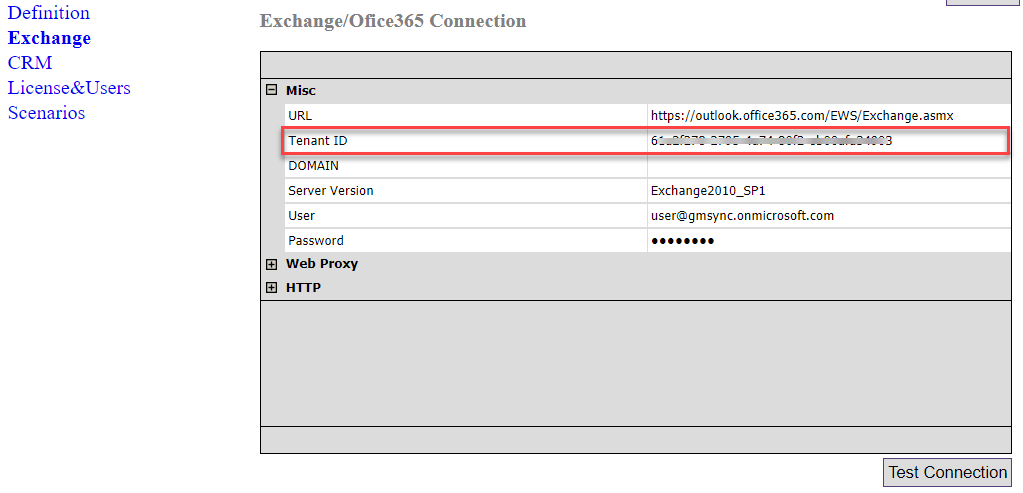
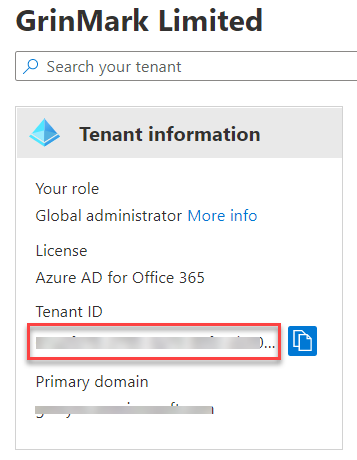
To find out the Tenant Id navigate to Azure Portal. Then go to Azure Active Directory > Overview.
Office 365 Plugin for Sugar/SuiteCRM
Go to the Settings page of the plugin. You may opt-in and start using OAuth before end of March. Just select OAuth in the Auth Type dropdown.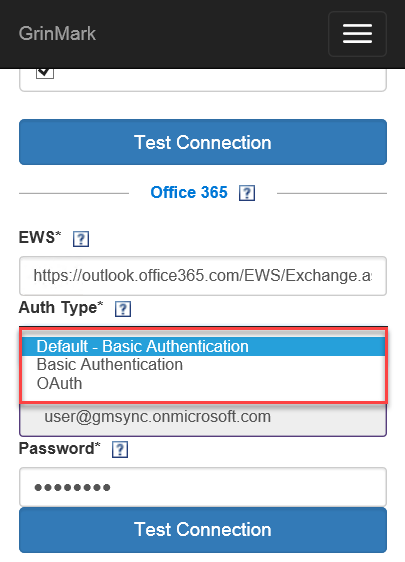
The dropdown contains three values:
- Default - it is determined by global plugin settings. It will be equal to Basic Authentication till the end of March. Then we plan to switch it to OAuth.
- Basic Authentication - select it to override global setting and continue to use Basic Authentication until you decide to use OAuth.
- OAuth - select it to override global setting and start using OAuth.
Granting User Consent
To open the user consent page simply Test Connection to Exchange from your GrinMark product and do suggested actions. You will see the following prompt:
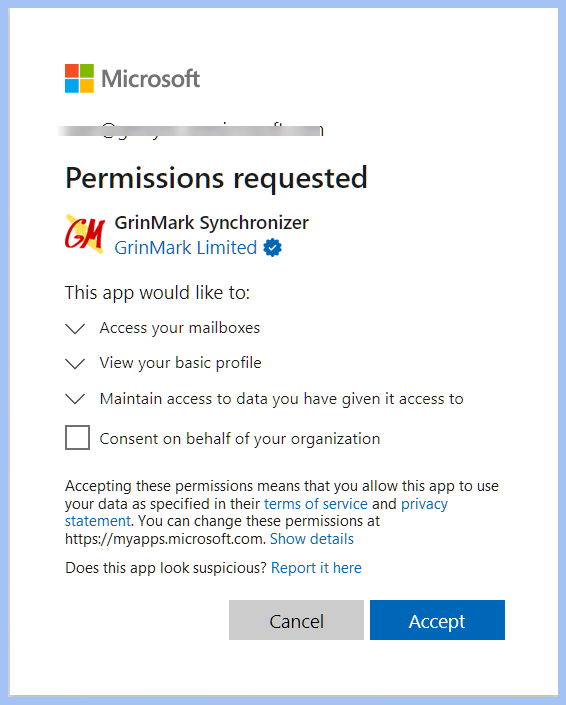
Click Accept button. Then you may re-test the connection and it should be successful. All done.
How to Revoke User Consent
If you will need to revoke the user consent then navigate to Azure Portal. Then go to Azure Active Directory > Manage > Enterprise applications. Find GrinMark Synchronizer in the list and select it. On the left sidebar choose Manage > Properties. Click Delete button on the toolbar.