Knowledge Base - Configuring Application Access Policy in Exchange Online
Application Access Policy
Administrators who need to limit app access to specific mailboxes can create an application access policy by using the New-ApplicationAccessPolicy PowerShell cmdlet. This article covers the basic steps to configure access control for GrinMark Synchronizer. These steps are specific to Exchange Online resources.
https://learn.microsoft.com/en-us/graph/auth-limit-mailbox-access
Create Mail-enabled Security Group
Navigate to Exchange admin center > Recepients > Groups > Mail-enabled security
https://admin.cloud.microsoft/exchange#/groups
- Add a new group EWSMailEnabled.
- Add all mailboxes you want to sync into this group.
- Copy the GroupObjectID from the address bar:

Install/update ExchangeOnlineManagement module
Check if it is already installed
Get-Module -Name ExchangeOnlineManagement -ListAvailable- If it’s listed, you might just need to update it.
- If it’s not listed, you need to install it.
Install
Install-Module -Name ExchangeOnlineManagementTest
Connect-ExchangeOnlineThis should now work, prompting you for your credentials.
Connect to your instance of Exchange
Your account needs the necessary permissions to assign the ApplicationImpersonation role. You need to have an account with either the Global Administrator role or the Exchange Administrator role.
Connect-ExchangeOnline -UserPrincipalName youradmin@domain.comUse PowerShell to Confirm Group Visibility in Exchange Online
Get-DistributionGroup -Identity "<GroupObjectId>"Here GroupObjectId is the ID you copied from the browser address bar on the first step.
Create the Application Access Policy with the Group’s Object ID
New-ApplicationAccessPolicy -AccessRight RestrictAccess -AppId "b361979a-3ccf-4bcd-b3cf-b5acb60e8e0f" -PolicyScopeGroupId "<GroupObjectId>"Verify the Application Access Policy
Get-ApplicationAccessPolicy | Where-Object { $_.AppId -eq "b361979a-3ccf-4bcd-b3cf-b5acb60e8e0f" } | Format-Table -AutoSizeTest Access for a Specific Mailbox
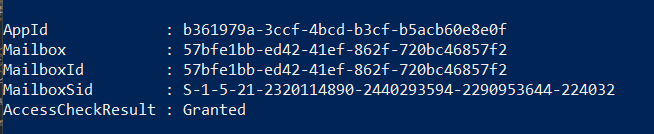
Test-ApplicationAccessPolicy -AppId "b361979a-3ccf-4bcd-b3cf-b5acb60e8e0f" -Identity "user@domain.com"Expected output:
Check Application Permissions in Azure AD
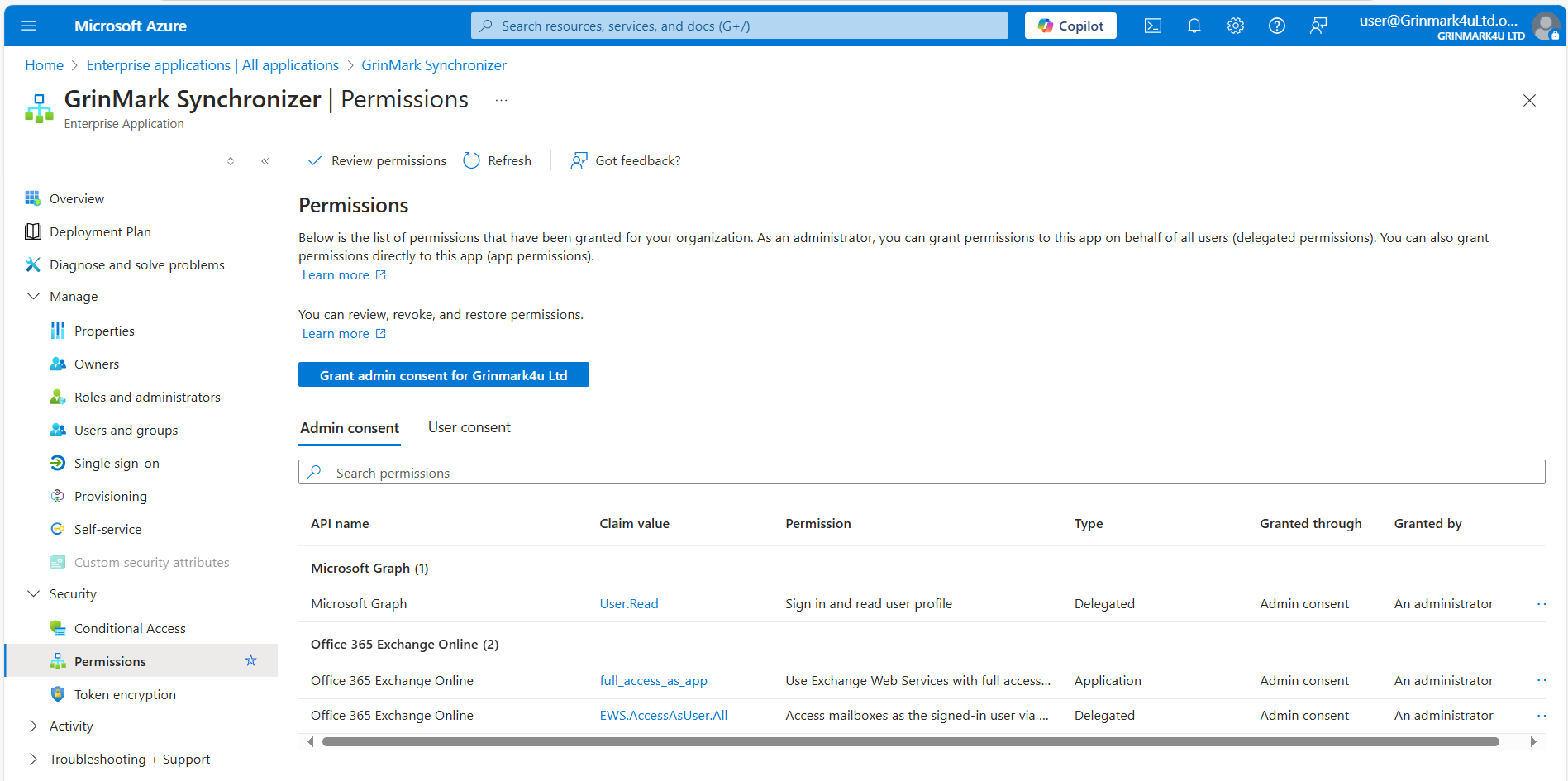
Ensure your application has been granted the EWS.AccessAsUser.All permission with admin consent:
https://portal.azure.com/#home
- Go to Azure Portal > Enterprise Applications > GrinMark Synchronizer
- Unde rPermissions, verify that EWS.AccessAsUser.All is listed.
- Ensure Admin consent has been granted. If not, click Grant admin consent.